5 Bash Snippets That Saved My Dev Life on Linux Devices

From flaky USB cameras to Docker crashes — these quick scripts helped me survive the wild west of edge devices debugging
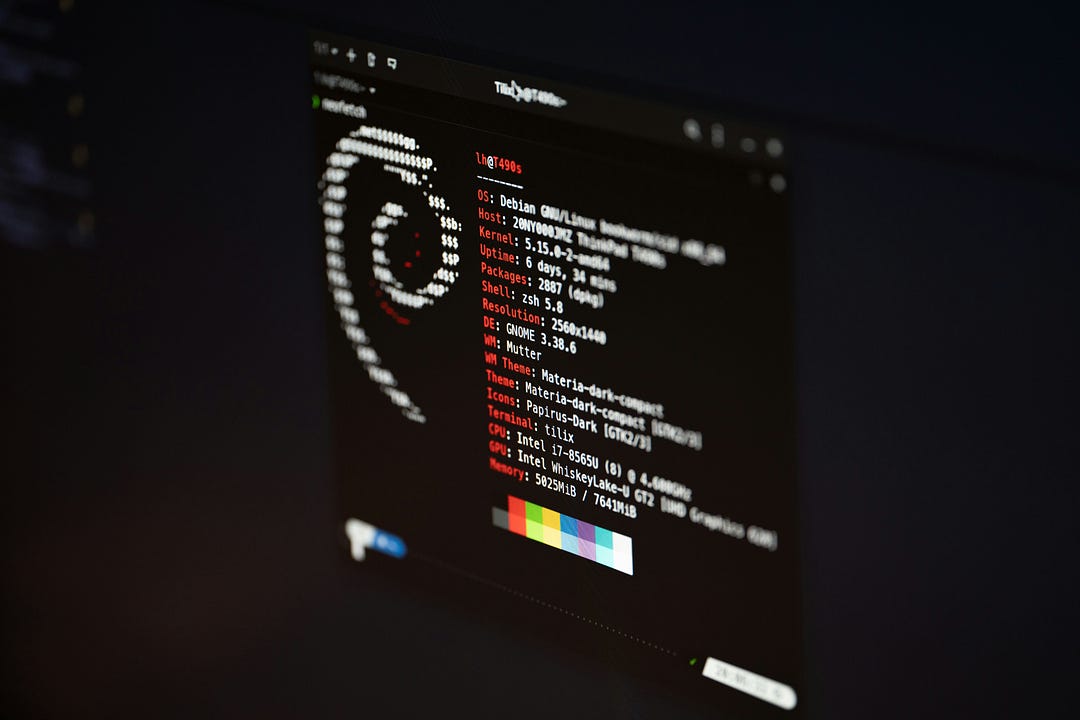
When you’re in the trenches with Linux-based systems — working with USB/IP cameras, Dockerized apps— you end up writing a lot of ‘just-make-it-work’ Bash scripts.
Read this first
The provided scripts do not show the exact version I used before.
I’ll add the complete versions to my repository on a later date: https://github.com/the-shy-dev/bash-snippets-gallery
To be honest, I would love to see how you would implement these ideas. Please share them with me.
1. USB Camera Sanity Test Script: Confidence in 30 Seconds
When I plugged in a USB camera, I needed three things immediately:
Is the device detected?
Can I preview and save frames?
Can I log the camera’s capabilities for future debugging?
#!/bin/bash
DEVICE="/dev/video0"
FRAME_DIR="./camera_test_output"
INFO_LOG="$FRAME_DIR/camera_info.log"
mkdir -p "$FRAME_DIR"
echo "[*] Checking USB camera at $DEVICE..."
if v4l2-ctl --list-devices | grep -q "$DEVICE"; then
    echo "[+] Device detected."
    echo "[*] Logging camera capabilities..."
    v4l2-ctl --device="$DEVICE" --all > "$INFO_LOG"
    echo "[*] Previewing camera feed..."
    ffplay -f v4l2 -framerate 25 -video_size 640x480 -i "$DEVICE" &
    sleep 3
    echo "[*] Capturing sample frames..."
    for i in {1..3}; do
        ffmpeg -f v4l2 -video_size 640x480 -i "$DEVICE" -frames:v 1 "$FRAME_DIR/frame_$i.jpg" -loglevel quiet
        sleep 1
    done
    echo "[*] Listing available formats and resolutions..."
    v4l2-ctl --device="$DEVICE" --list-formats-ext >> "$INFO_LOG"
    echo "[+] Output saved in $FRAME_DIR"
else
    echo "[!] Device not found at $DEVICE. Is it plugged in?"
fi
Why it’s useful:
Logs full camera capabilities.
Captures sample frames.
Provides live preview.
Helps debug camera compatibility without launching a full app.
2. Process Resource Monitor with Basic Fault Handling
This script gives you a simple CSV of CPU, RAM, and network stats for any process you care about. The data could be further processed via a simple python script to represent visually.
#!/bin/bash
PROCESS_NAME=$1
LOGFILE="monitor_${PROCESS_NAME}.log"
NET_INTERFACE="eth0"
if [ -z "$PROCESS_NAME" ]; then
    echo "Usage: $0 <process_name>"
    exit 1
fi
echo "[*] Monitoring '$PROCESS_NAME' every 5 seconds"
echo "Timestamp,CPU(%),Memory(%),Net(TX_KB),Net(RX_KB),Status" > "$LOGFILE"
while true; do
    TIMESTAMP=$(date +%Y-%m-%dT%H:%M:%S)
    PID=$(pgrep -n "$PROCESS_NAME")
    if [ -n "$PID" ]; then
        CPU=$(ps -p "$PID" -o %cpu --no-headers | xargs)
        MEM=$(ps -p "$PID" -o %mem --no-headers | xargs)
        TX=$(cat /sys/class/net/$NET_INTERFACE/statistics/tx_bytes 2>/dev/null || echo 0)
        RX=$(cat /sys/class/net/$NET_INTERFACE/statistics/rx_bytes 2>/dev/null || echo 0)
        echo "$TIMESTAMP,$CPU,$MEM,$((TX/1024)),$((RX/1024)),OK" >> "$LOGFILE"
    else
        echo "$TIMESTAMP,0,0,0,0,NOT FOUND" >> "$LOGFILE"
    fi
    sleep 5
done
Why it’s useful:
Logs everything to a CSV.
Helps you understand essential performance metrics.
3. Intelligent Network Reconnection Script (Wi-Fi + Ethernet)
I’ve used this on everything from Jetsons to Raspberry Pi to edge Linux boxes. If Ethernet is used, it resets the interface. If Wi-Fi, it tries reconnecting intelligently.
#!/bin/bash
INTERFACE=$1
WIFI_SSID=$2
WIFI_PASS=$3
CHECK_INTERVAL=10
if [ -z "$INTERFACE" ]; then
    echo "Usage: $0 <interface> [wifi_ssid] [wifi_password]"
    exit 1
fi
is_wireless() {
    iw dev | grep -q "$INTERFACE"
}
reconnect_wifi() {
    if nmcli dev wifi | grep -q "$WIFI_SSID"; then
        echo "[$(date)] Attempting to reconnect to known Wi-Fi $WIFI_SSID..."
        nmcli dev wifi connect "$WIFI_SSID" password "$WIFI_PASS" iface "$INTERFACE"
    else
        echo "[$(date)] Wi-Fi SSID not found. Retrying later..."
    fi
}
restart_eth() {
    echo "[$(date)] Restarting Ethernet interface $INTERFACE..."
    sudo ip link set "$INTERFACE" down && sleep 2
    sudo ip link set "$INTERFACE" up
}
echo "[*] Monitoring network on $INTERFACE"
while true; do
    if ! ping -I "$INTERFACE" -c 1 8.8.8.8 > /dev/null 2>&1; then
        echo "[$(date)] Network unreachable on $INTERFACE"
        if is_wireless; then
            reconnect_wifi
        else
            restart_eth
        fi
    else
        echo "[$(date)] Network OK on $INTERFACE"
    fi
    sleep "$CHECK_INTERVAL"
done
Why it’s useful:
Automatically recovers from lost connections.
Handles both Wi-Fi and Ethernet with appropriate logic.
Keeps headless devices online.
4. Docker Debug Collector (Auto-Zip Diagnostic Logs)
This one is a life-saver when your Docker app fails and you want to collect everything before restarting or reporting the bug.
#!/bin/bash
CONTAINER_NAME=$1
OUTPUT_DIR="docker_debug_$(date +%Y%m%d_%H%M%S)"
ZIP_FILE="$OUTPUT_DIR.zip"
if [ -z "$CONTAINER_NAME" ]; then
    echo "Usage: $0 <container_name>"
    exit 1
fi
mkdir -p "$OUTPUT_DIR"
echo "[*] Collecting Docker system info..."
docker images > "$OUTPUT_DIR/images.txt"
docker ps -a > "$OUTPUT_DIR/containers.txt"
echo "[*] Capturing logs for container: $CONTAINER_NAME"
docker inspect "$CONTAINER_NAME" > "$OUTPUT_DIR/${CONTAINER_NAME}_inspect.json"
docker logs "$CONTAINER_NAME" > "$OUTPUT_DIR/${CONTAINER_NAME}_logs.txt"
echo "[*] Copying mounted volumes (if any)..."
docker inspect --format '{{ range .Mounts }}{{ .Source }} -> {{ .Destination }}\n{{ end }}' "$CONTAINER_NAME" > "$OUTPUT_DIR/${CONTAINER_NAME}_mounts.txt"
echo "[*] Zipping all collected logs..."
zip -r "$ZIP_FILE" "$OUTPUT_DIR" > /dev/null
echo "[+] Debug data archived to $ZIP_FILE"
Why it’s useful:
Grabs container logs, mounts, inspect data, and Docker status in one go.
Great for creating bug reports or investigating crashes after-the-fact.
5. Real-Time File Watcher for Custom Actions (inotify)
Imagine a file drops in a folder, and you want to process or back it up immediately. This script listens for new files using inotifywait.
#!/bin/bash
WATCH_DIR="/home/user/input_dir"
ACTION_SCRIPT="./process_file.sh" # Assume this is another script that handles files
echo "[*] Watching $WATCH_DIR for new files..."
inotifywait -m -e create --format "%f" "$WATCH_DIR" | while read FILE
do
    echo "[$(date)] New file detected: $FILE"
    "$ACTION_SCRIPT" "$WATCH_DIR/$FILE"
done
Why it’s useful:
No need for polling loops.
Automates pipeline triggers as soon as data arrives.
Very handy for camera footage processing or ETL-like setups.
Bonus: nohup – My Unsung Hero for Remote Scripting
Okay, this one’s not a script — but it ran all my scripts. When you’re working with edge devices — especially over SSH or in unstable environments — you quickly realize that losing your shell session mid-execution is a nightmare. That’s where nohup came to my rescue.
I used it constantly while running these very scripts on real devices in the field:
The network reconnection script kept headless Jetson and Pi devices online, even when Wi-Fi dropped.
The process monitor ran quietly in the background, logging performance of my Docker apps overnight.
The file watcher script processed incoming camera footage while I focused on other tasks.
or Any other installer scripts I prepared in the past that can run quite long.
Instead of setting up tmux or systemd immediately, I often used:
nohup ./network_watchdog.sh > watchdog.log 2>&1 &
This kept the script alive even after SSH disconnects, power hiccups, or accidental terminal closures — an absolute lifesaver when deploying to remote or industrial environments.
Pros:
Doesn’t die with your terminal.
Simple and fast to use for long-running scripts.
Logs output to file for post-mortem debugging.
Cons:
If you forget to redirect output, it writes to
nohup.outin your working directory.It doesn’t survive reboots — consider
systemd,supervisord, or cron@rebootif needed.
Bonus 2: Use logrotate to Keep Log Files Clean
An amazing helper command to keep things clean. Running long-term scripts with nohup means log files can grow fast. To avoid disk space issues, set up log rotation to clean files based on desired conditions.
Here’s a sample logrotate configuration file:
/home/nvidia/*.log {
    daily
    rotate 7
    compress
    missingok
    notifempty
    create 644 user user
}
This configuration:
Rotates logs daily
Keeps logs for the last 7 days
Compresses older logs to save space
Skips empty or missing files
Creates new logs with correct permissions
Without logrotate, nohup logs can silently eat up your disk. With it, you get Reliable background scripts (nohup), Persistent logs without bloat (logrotate). I consider this as a low-effort, high-impact combo for any serious Linux development setup.
Final Thoughts
These scripts weren’t born in clean labs or tidy tutorials — they came out of panic, frustration, and real-world chaos: broken cameras, flaky Wi-Fi, silent crashes on remote machines, unstable applications.
If you’ve ever SSH’d into a device and whispered things like:
“Please work…”
“What’s happening!?”
“How do I know it’s still alive?”
…then you know exactly why scripts like these matter.
They helped me bring some sanity to systems that weren’t built to be predictable — and maybe they’ll help you too.
Do you have a Bash trick or script that saved your dev life? Drop it in the comments — I’d love to hear it from you!


